What is CPOMS?
CPOMS StudentSafe is a student safeguarding platform for schools. Komodo sends check-in follow-ups to CPOMS, meaning safeguarding leads and pastoral teams can act with the full context in one place.
How it works
In Komodo
When following up a check-in, if Send to CPOMS is enabled, the follow-up will be sent to CPOMS as an Incident.
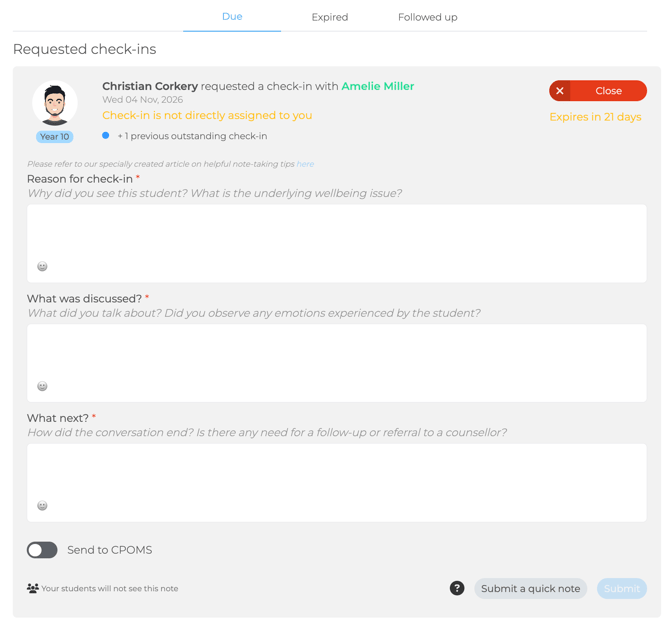
Sending a follow-up to CPOMS
Auto-matching
Komodo will try to auto-match the Komodo student with a CPOMS student using either their UPN or MIS ID.
The UPN is the student's unique pupil number for UK schools (see https://www.gov.uk/government/publications/unique-pupil-numbers). This can be added to Komodo depending on how students are imported:
- If using Wonde, the UPN will be added to Komodo automatically if the Wonde permission "Students UPN read" is enabled.
- If using CSV Imports, the UPN will need to be added to the CSV as a column.
- If adding a single student, this is available as a field after selecting the student role.
The MIS ID is the student's ID in the school's Student Information System. This can be added to Komodo depending on how students are imported:
- If using Wonde, the MIS ID will be added to Komodo automatically.
- If using CSV Imports, the MIS ID will need to be added to the CSV as a column.
In CPOMS
If we're unable to auto-match the student, the Incident will display in the Incident Tray in CPOMS. It will need to be manually matched to a CPOMS student.
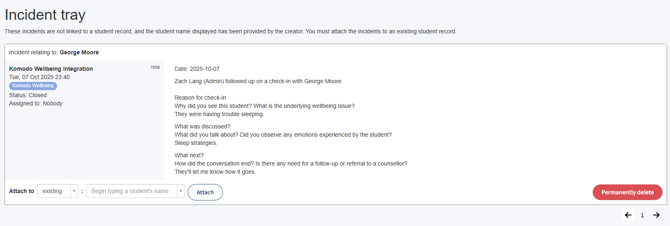 Incident Tray in CPOMS
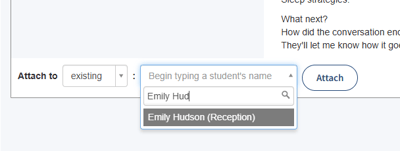
Manually attaching an Incident to a student
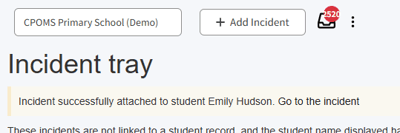
Link to student profile after attaching the Incident
If we're able to auto-match the student (or the Incident is manually matched), the Incident will display in the student's profile in CPOMS.
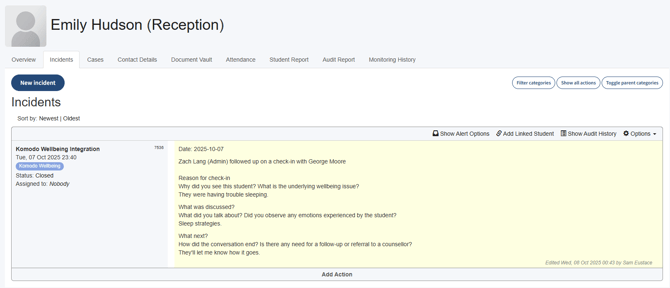 Incident in student's profile
Setting up the integration
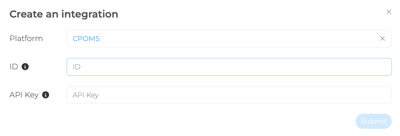
To set up the integration, your CPOMS admin can go to Admin > Integrations > Komodo Integration in CPOMS to generate the API token and identifier. The identifier is the first bit of your CPOMS URL (e.g. https://test.cpoms.net would be "test").
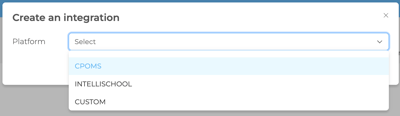
A Komodo Admin user can then add these under Settings > Integrations > +Create an Integration > CPOMS in Komodo, or you can share them with us, and we’ll complete the setup for you.