
Every Komodo user has a role. The role decides what they can do, and their groups decide which students they can see.
Admin and Staff at a glance
| Admin | Staff | |
|---|---|---|
| Who it's for | Wellbeing lead, senior leaders, heads of year, IT or data manager | Teachers and tutors |
| Can see | Students in their groups | Students in their groups |
| Surveys | Create, edit, assign, pause and delete | View and preview |
| Users, groups, sync and integrations | Yes | No |
| Passwords | Can reset other users' passwords | Own password only |
| School-wide settings | Yes | No |
| Requested check-ins | Can opt out in their own preferences | Can't opt out. An admin changes their groups instead |
Only admins can create and edit surveys. This keeps questions consistent across cohorts, so your data stays comparable.
Other roles
- Student: completes surveys and sees only their own information.
- Staff Wellbeing roles: each user has a separate role for Staff Wellbeing, shown as "Staff Wellbeing > STAFF" or "> ADMIN". Staff Wellbeing admins see all staff groups and Staff Wellbeing analytics.
- Counsellor: gets the counselling tools, such as referrals, appointments and case notes. Two-factor authentication is switched on automatically and can't be turned off.
- Parents: have no access to Komodo.
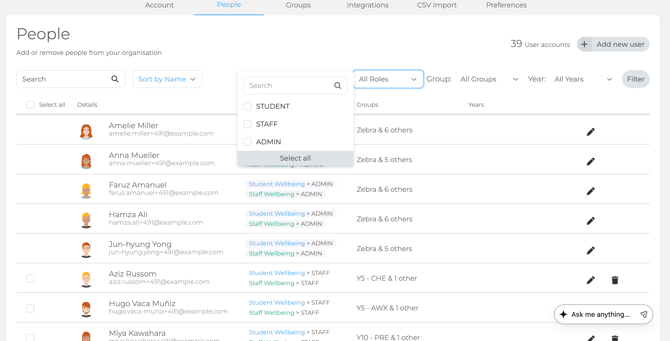
Groups decide what people see
Admins and staff only see students in the groups they're assigned to. Being an admin doesn't show every student. If someone can't see the right students, add them to the right groups. See Managing users and groups.
Making someone an admin
Schools using Wonde:
- Go to Settings → [Your SIS] Import and open the Users tab.
- Find the person and tick Admin role required.
- Click Save and Sync.
Schools not using Wonde:
- Go to Settings → People and click the pencil next to the person.
- Under User role, choose Admin for Student Wellbeing, and for Staff Wellbeing if needed.
- Click Update user.
To change several roles at once, upload a CSV with the correct roles in Settings → CSV Import.
Then add the new admin to the groups they need, and ask them to review their own notifications in Settings → Preferences → User Preferences. See Notifications and reminders.
Keep at least two admins
If your Komodo lead leaves, another admin can hand over access. If no admin is left, email support@komodowellbeing.com from a school email address, with the school's approval.
Setting up for a new year? This is Step 4 of the Admin checklist.
