
Surveys power the wellbeing rings, check-in recommendations and analytics in Komodo. Admins create and assign surveys. Your School Success Lead can help you design yours.
1. Plan your survey
Before choosing questions, agree as a team:
- What do we want to know about our students' wellbeing?
- Why does it matter in our school right now?
- What would we do if the results came back low? Only ask about things you can act on.
Be specific. For example, measure "confidence" rather than a broad topic like "mental health".
2. Choose the length and frequency
| Student age | Questions | Response type | How often |
| 8 to 11 | 5 to 8 | Mix of emojis and sliders | Every 2 to 3 weeks |
| 12+ | 8 to 10 | Mostly sliders | Every 3 to 4 weeks |
Aim for a survey students can finish in about 5 minutes. Komodo shows a warning if you go above 10 questions. Many schools reduce frequency around exams.
Recommendation: We do not recommend administering surveys to children aged 5–7 years. At this developmental stage, children may not yet have the cognitive, language and emotional understanding required to consistently interpret questions and provide reliable responses, particularly when questions relate to abstract concepts such as wellbeing, belonging or psychological safety. Alternative, developmentally appropriate approaches, such as observation and age-appropriate conversations, are recommended to better understand their experiences.
3. Build the survey
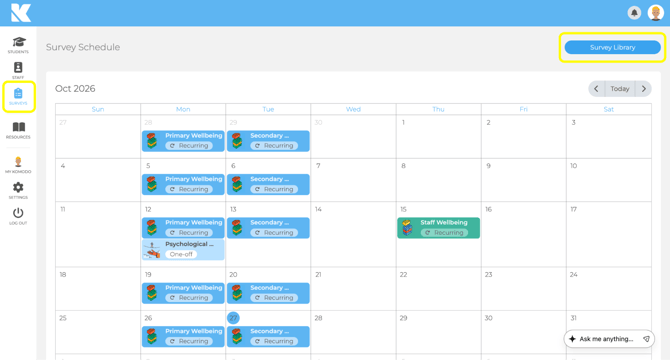
- Go to Surveys in the left menu, then Survey Library.
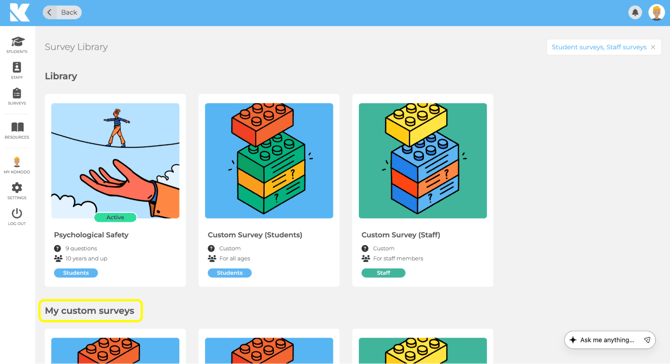
- Open a drafted survey, or create a new one.
- Choose the age category: Primary or Secondary. Only questions for that age group are shown, and primary students see a plain-language description on each question.
- Add questions from the library. Questions are grouped by area of wellbeing, then theme. Every question is designed by our psychology team and externally peer reviewed.
- Pick a response type for each question (emoji or slider). Mixing formats keeps students engaged.
- Edit the final open-ended question using the pencil icon on the right of the screen, then save.
4. Assign and schedule
- In Survey Library, click the saved survey, then Assign then Assign Survey.
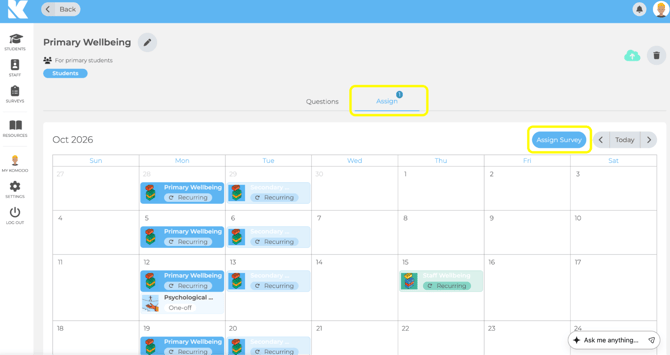
- Choose the groups or years. Surveys can't be assigned to individual students.
- Choose one-off or recurring. For a one-off survey, Survey Length sets how many days it stays open after the due date. Recurring surveys have no end date, so pause them over holidays.
- Set the Notification Time. Students are emailed at this time (in your school's time zone), with an automatic reminder 3 days later if they haven't finished.
To change dates or groups later, click the survey in the Surveys calendar and click Edit, Pause or Resume.
Best practice tips
- Keep core questions: keep 2 to 3 questions the same all year to track trends, and review the rest each term.
- Make the open-ended question specific: "What do you enjoy most about coming to school?" gets better answers than "Any other comments?". These answers don't appear in group analytics.
- Balance your questions: Include questions that explore students’ strengths, positive experiences and protective factors, alongside those that identify challenges or areas of need. Consider timing questions about stress and pressure to coincide with busier periods, such as exams.
- Avoid overlaps: don't run a one-off and a recurring survey for the same group at the same time, or students will get both.
- Psychological Safety survey: for students aged 10+, run it 2 to 4 times a year in place of that week's regular survey.
- Student Safety questions are always placed last in the survey automatically.
- Editing a survey changes it for every date it's scheduled. Responses already collected are kept. For a fresh start, pause the old survey and create a new one.
- Time questions thoughtfully: Include targeted questions at relevant points throughout the school year to capture experiences specific to that time, such as stress and workload during exams, or wellbeing, belonging and transitions following school holidays.
Keep students engaged
- Explain why you're surveying and that there are no wrong answers.
- Run surveys at the same time each cycle, for example in form time.
- Share high-level results and what you've changed: "Because you told us X, we are doing Y."
- If you notice survey fatigue, change the question order, switch response formats, rotate the open-ended question or survey less often.
- Respond to requested check-ins and comments quickly. Students keep answering when they see someone acts.
- Look for patterns across the year, such as dips around exams or in winter, and plan support for those times.
- Around exams, reduce frequency or survey alternate weeks rather than stopping altogether.
- If engagement drops, use the comment feed or a custom open-ended question to ask students what would help.
- Students who miss a survey can complete it on a staff device during the school day.
Keep staff engaged
- Co-design surveys with staff and students so everyone has a stake in the questions.
- Share cohort data openly so staff see the wider picture, then close the loop by showing what changed.
- Ask your most engaged staff to share how they use Komodo and examples of student impact.
- Consider a small Komodo champion team to keep momentum and support colleagues.
Please note: Komodo is not a safeguarding tool. Follow your school's safeguarding procedures for any concerns.
Learn more: Video: Creating and assigning surveys · Survey Design: Steps to Success · School guide to the question library
