
QR codes let students log in without typing an email or password. They're usually the simplest option for younger students.
Logging in with a QR code
- Go to app.komodowellbeing.com/login, or open the Komodo app.
- Click Log in with QR code.
- Hold the QR code up to the camera until Komodo logs you in.
Always scan inside Komodo. Scanning with a device's normal camera app won't log you in.
Finding a student's QR code
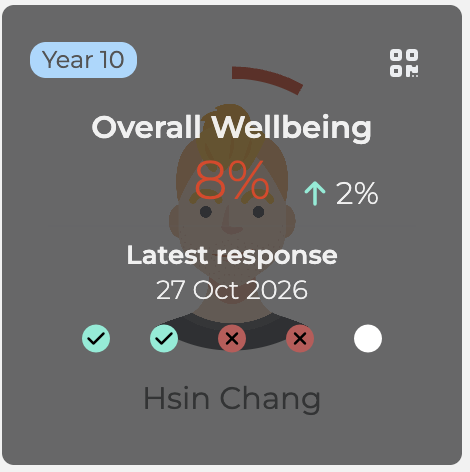
- One student: on the Student Dashboard, click the QR code Icon at the top right of the student's card.
- Several students: go to Students → QR Codes and select the students you need. You can filter by year or group.
Printing and downloading
- In Students → QR Codes, select the students and click Print.
- To download instead, choose Save as PDF as the printer.
For a guided walkthough, see: Locating and Printing QR Codes for Student(s)
If a QR code isn't working
- Scan in the right place: use Log in with QR code or the Komodo app, not the camera app.
- Help the camera: find better lighting and hold the card flat and still. Some tablet cameras struggle to scan.
- Update the app: if you use the Komodo app, make sure it's the latest version.
- Print a fresh code: make sure the code is current for this academic year.
