
Once a survey is assigned, admins can check it, change it, pause it or delete it from the survey calendar. This guide covers everything after you click Assign. To build a survey, see the Guide to creating surveys.
Finding a live survey
- Click Surveys in the left menu to open the calendar.
- Hover over a survey to see the groups it's assigned to, its start date, how often it repeats and how many students have completed it.
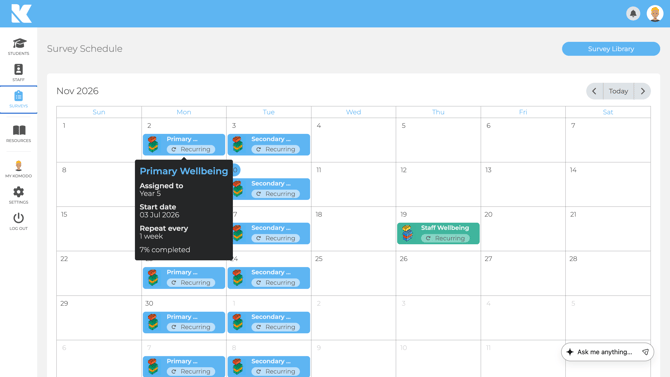
Each survey is labelled Recurring or Paused. Use the arrows at the top right to move between months.
One-off or recurring
- One-off: sent once. Use the Survey Length field when assigning to set how many days it stays open. Good for a baseline or end-of-term check.
- Recurring: sent again and again, for example every two weeks. Recurring surveys have no end date. To stop one, pause or delete it.
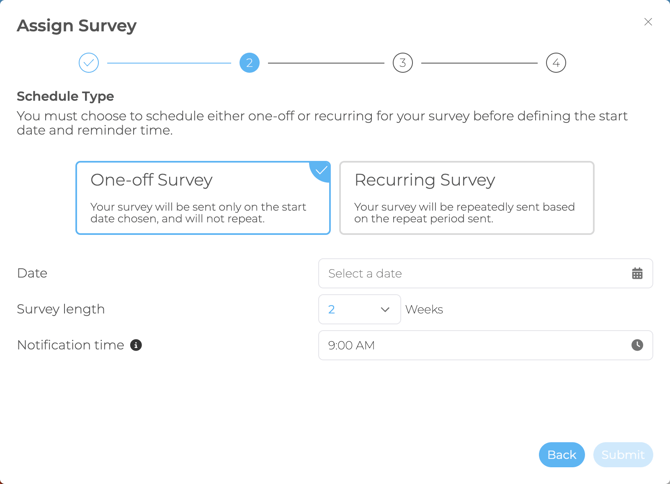
Avoid running a one-off and a recurring survey for the same group at the same time, or students will get both.
Pausing, editing or deleting a survey
Click a survey in the calendar to open it. You'll see the start date, how often it repeats and its notification time, with three buttons.
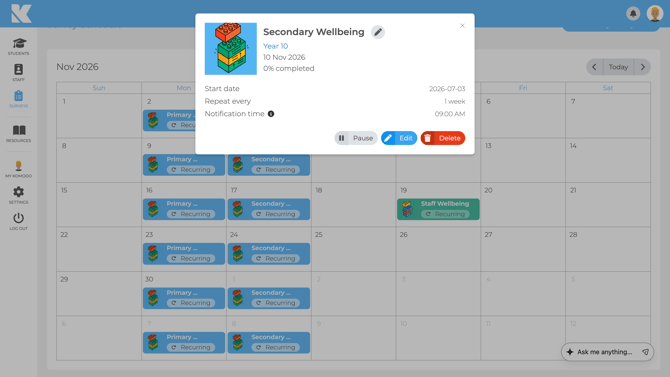
- Pause: stops future survey dates. A survey that's already due stays open so students can finish it. Click Resume to restart. Paused surveys don't restart on their own.
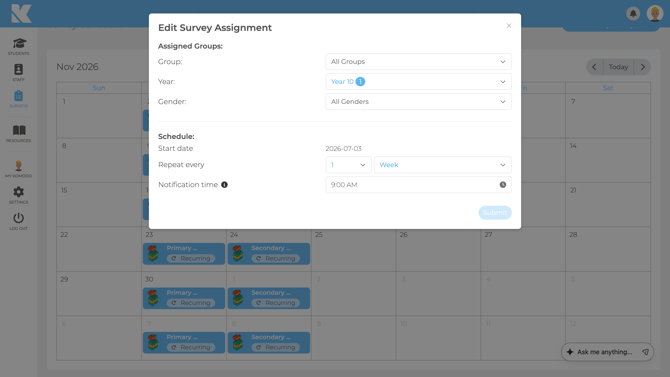
- Edit: change the groups, years, genders, start date, how often it repeats and the notification time, then click Submit.
- Delete: removes the assignment, including from students who have already been sent it, and its completion rates from the calendar.
Changing the questions
Go to Surveys → Survey Library and open the survey. Changes apply everywhere the survey is used, including earlier dates in the calendar. Responses already collected are kept. For a clean break, such as a new survey for a new term, pause the old one and create a new survey.
Common situations
- School holidays: pause the survey before the break and resume it when term starts. Students aren't sent surveys for paused dates, and missed dates aren't sent later.
- Moving a survey to another day: before it starts, click Edit and change the start date. Once a survey has started, its start date can't be changed, so pause it and assign the survey again with the new date.
- Sent to the wrong class: a sent survey can't be removed from a group. Click Edit to fix the groups for future dates.
- One student needs it: surveys go to groups and years, not individual students. Create a temporary group with just that student and assign the survey as a one-off.
- A student wants to redo a survey: submitted answers can't be deleted. Use a temporary group, as above.
- Students got two surveys: check the calendar for another assignment to the same group, perhaps set up by another admin, or a one-off overlapping a recurring survey.
- Students weren't emailed when I assigned it: emails go at the survey's notification time, in your school's time zone, not when you click Assign. Students can still log in and complete it straight away.
- Editing a colleague's survey: admins can open and edit surveys created by other admins.
To see who has completed a survey and send reminders, see Viewing outstanding surveys and sending reminders. For notification settings, see Notifications and reminders. Video: How to edit, pause, resume and delete surveys.
