
Admins can add, edit and remove users and groups in Settings. This matters because staff only see students in the groups they belong to, and surveys are sent by group and year.
Before you start: if your school syncs with Wonde, make changes to users and classes in your SIS, not in Komodo. Changes made in Settings → People are replaced at the next sync.
Finding users
- Go to Settings → People.
- Search by name or email, or filter by Role, Group or Year, then click Filter.

Each row shows the user's role, groups and year levels. Use the pencil to edit a user and the bin to remove them.
Adding a single user
Schools using Wonde: add the person in your SIS. Allow 24 to 48 hours for Wonde to pick up the change, then go to Settings → [Your SIS] Import, click Refresh SIS data, then Save and Sync.
Schools not using Wonde:
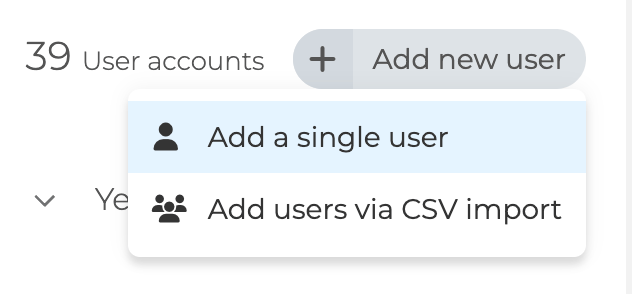
- Go to Settings → People and click Add new user.
- Enter their first name, last name and school email address. The email must match their Google, Microsoft or ClassLink login if your school uses SSO.
- Choose their role for Student Wellbeing (Student, Staff or Admin) and, if you have it, Staff Wellbeing.
- Add their Groups and Year Levels.
- Set a password, or click the key icon to generate one. A password is needed even if they will sign in with SSO or a QR code.
- Click Create user.
Adding lots of users at once
Schools using Wonde: add the users in your SIS. Allow 24 to 48 hours for Wonde to pick up the change, then go to Settings → [Your SIS] Import, click Refresh SIS data, then Save and Sync.
Schools not using Wonde:
- Go to Settings → CSV Import and download the template.
- Fill in one row per user: First Name, Last Name, Email, Gender and Role are required. Fill in Year and Group too, or users will miss surveys sent to their year or group.
- Upload the file, match the columns, then click Match and create all. Stay on the page until the import finishes.
Editing a user
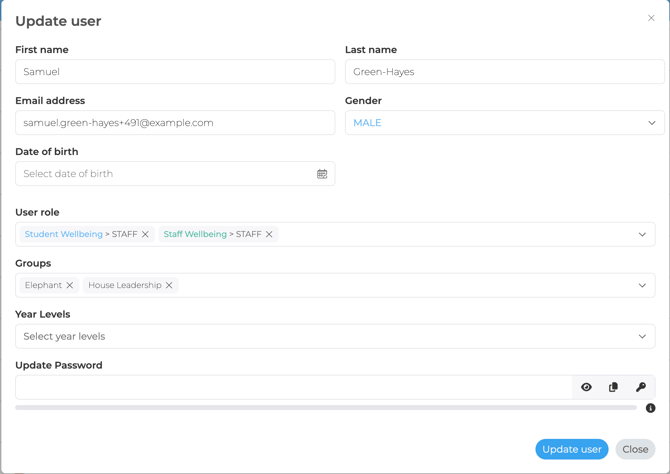
- In Settings → People, click the pencil next to the user.
- Update their name, email, role, groups or year levels.
- Click Update user, then ask them to sign out and back in.
- Changing an email address: on Wonde, change it in your SIS and sync. Otherwise edit it here. Each email can only belong to one account, so you'll see an error if it's already in use.
- Resetting a password: click the pencil, then Update Password. Enter the verification code sent to your email, then click Update user.
- Preferred names: there's no separate field. Put the name the student uses in First Name. On Wonde, update it in your SIS.
Removing a user
- In Settings → People, click the bin next to the user. To remove several, tick them and remove them together.
- Click Remove to confirm.

There is no restore button, so check the person has left first. On Wonde, leavers are removed automatically at the next sync after their leaving date passes. Removing someone from a group doesn't remove them from Komodo.
Managing groups
A group can be any cohort: a class, tutor group, house, boarding group or focus group. Go to Settings → Groups to create, rename or delete groups, and to add or remove members.
- Deleting a group doesn't delete its students or staff, or their data.
- Moving a student to another group keeps all their data. If the new group gets a different survey, they'll receive it when it's next due.
- To give a staff member access to more students, add them to more groups: Settings → People → pencil → Groups, or Settings → Groups. On Wonde, assign staff to classes on the Users tab of the Import page, then click Save and Sync.
Troubleshooting
- A staff member sees no students: check they're in at least one group and that the filters at the top right aren't hiding anyone. Being an admin doesn't show every student.
- A student is in the wrong class: on Wonde, fix it in your SIS and sync. Otherwise change their groups here.
- New students aren't showing: allow 24 to 48 hours for Wonde, then sync again. Ask IT to check every Wonde permission is approved.
- Changes keep disappearing: your school uses Wonde, so the sync overwrote them. Make the change in your SIS.
- Last year's data: history follows each student's school email, so it carries over as long as the email stays the same.
Doing this at the start of the year? Follow Admin checklist, Steps 2 and 3. See also Admin roles and permissions. Video: How to add, remove and edit users.
