
Before you assign a survey, it helps to know exactly what students will see. Every Komodo survey has three short steps, shown by the progress bar at the top.
Step 1: The survey questions
Students see a greeting with their name, then the questions your school chose.
- Each question uses the response type you picked: emojis or a slider with key words.
- Questions marked with a red star must be answered before moving on.
- Show description under a question gives a plain-language explanation, which helps younger students.
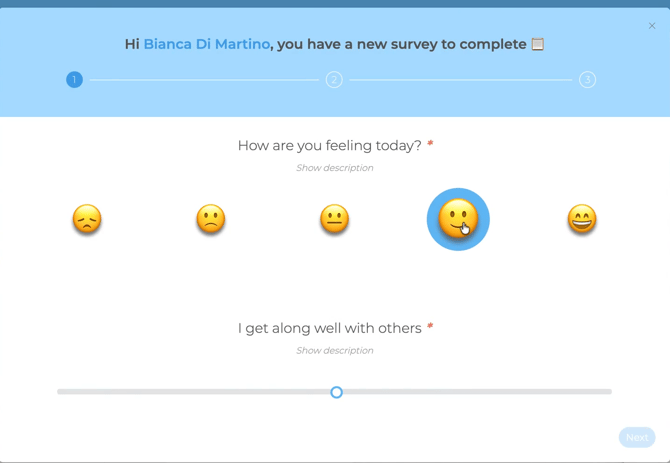
All questions come from our psychology team's question library. They are age-appropriate, and Primary students see wording written for their age.
Step 2: The open-ended question
Students can answer in their own words. This step is optional, so students who aren't ready can skip it.
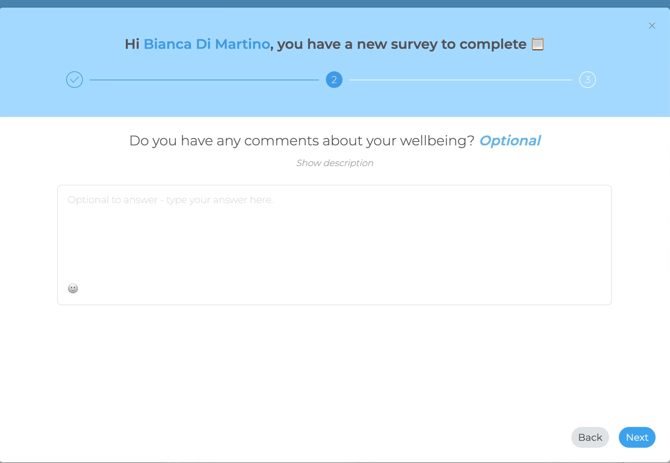
Specific questions get the most useful answers. "What do you enjoy most about coming to school?" works better than "Any other comments?". You can edit this question with the pencil icon when building the survey.
Step 3: The check-in request
Students are asked if they would like to talk to a staff member. They can choose Yes please, select staff members from your school's list and add an optional comment, or choose No thank you and submit.
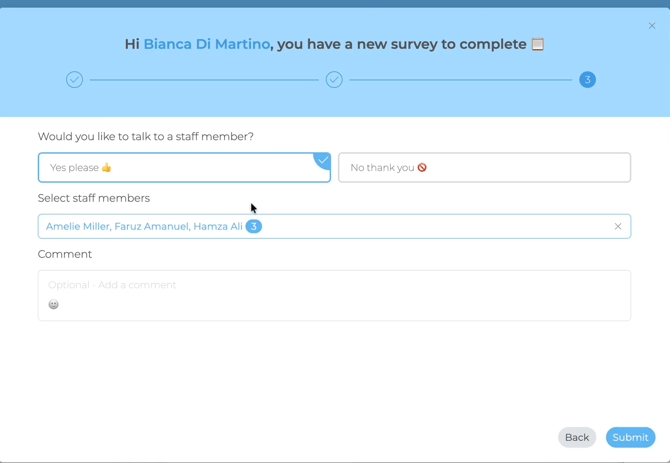
Either way, staff see all of the student's responses. Requests go to the chosen staff straight away. See Requested check-ins for how to follow them up.
Previewing a survey before it goes out
- Go to Surveys → Survey Library and open the survey.
- In the Question library within the survey, click Preview to see the survey exactly as students will, including each step and response type.
- Check the age category (Primary or Secondary), the questions, the response type for each, and the open-ended question.
- Aim for a survey students can finish in about 5 minutes.
If a Student Safety question is included, Komodo places it last automatically. For help designing a survey, see the Guide to creating surveys.
Good to know
- Students can complete surveys on the web or in the Komodo app, in their chosen language.
- Responses are confidential, not anonymous. Only staff with pastoral responsibility for the student see individual answers.
- Students who need support can complete their survey on a staff device. See Viewing outstanding surveys and sending reminders.
Watch the walkthrough
