
A recommended check-in is Komodo suggesting that a staff member checks in with a student whose wellbeing has dropped, or has been low for a while. It helps you notice students who might not ask for help themselves.
How recommended check-ins are triggered
Every time a student submits a survey, Komodo compares their answers with their own usual pattern. It recommends a check-in when it sees:
- Consistently low scores: a low response in an area over the student's last 3 surveys, for example "reported very low on the last 3 surveys for Motivation".
- A clear dip from their usual: a bigger than average drop from their previous survey, once they have completed at least 4 surveys, for example "reported significantly lower than usual Sleep Amount".
After about three surveys Komodo has learned each student's baseline, so recommendations become more accurate the more regularly students take part. Recommendations are signals to look into, not a diagnosis.
Where to find them
The recommended check-ins tile at the top of the Students page shows how many students in your groups have a recommendation waiting.
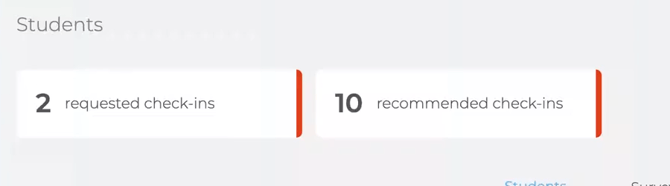
Click the tile to open the list. Each recommendation shows:
- the area to focus on, and how many other reasons were found
- the date it was generated
- any previous outstanding check-ins for that student
- how many days are left before it expires
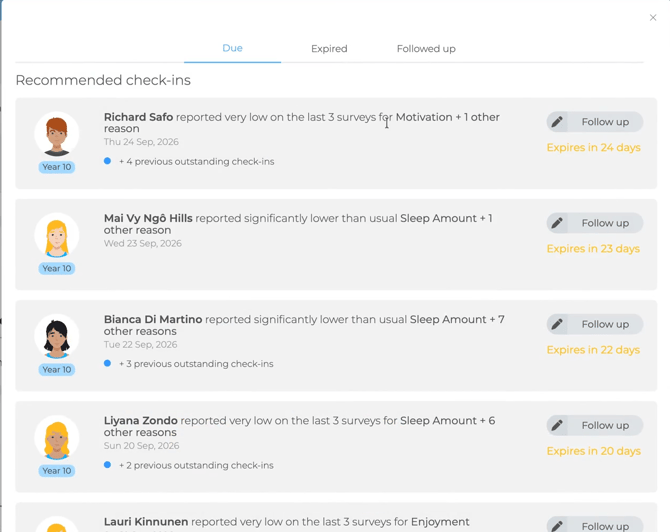
Use the Due, Expired and Followed up tabs to keep track.
Suggested response time: within 7 to 10 days. These catch an early trend rather than an urgent request.
Following up
- Look at the student's profile first to understand the trend, then have a short, supportive conversation.
- Open the recommended check-ins tile, find the student and click Follow up.
- Complete Reason for check-in, What was discussed? and What next? If your school uses CPOMS, switch on Send to CPOMS.
- Click Submit.
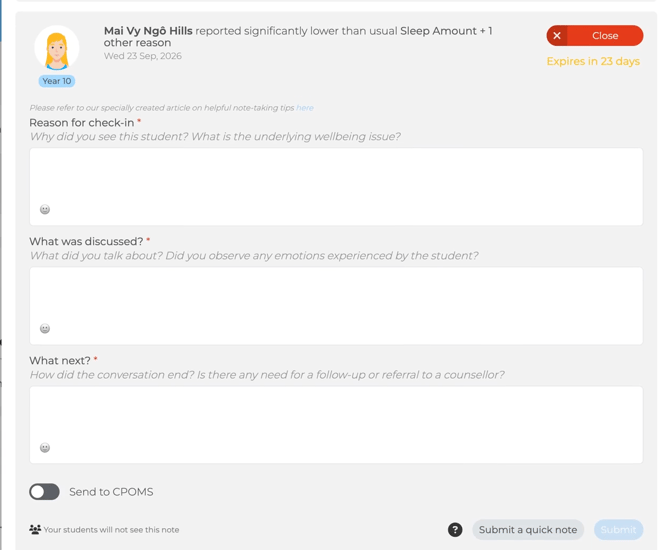
These conversations are usually touchpoints rather than in-depth interventions. Notes only take a couple of minutes, and they build a picture over time so the next adult knows what has been discussed.
Already supporting the student?
If you are already talking with the student about this, click Submit a quick note and log it briefly. This keeps your school's wellbeing record up to date without repeating the full form.
Managing the volume
- Agree who follows up which recommendations, for example tutors for their own group and pastoral leads for repeated ones.
- Counsellors and pastoral staff should set aside their usual check-in time for both requested and recommended check-ins.
- When a new recommendation is generated for a student, it replaces the previous one, which then shows as a previous outstanding check-in. Focus on the latest one.
Always follow your school's safeguarding policy for any concern. See also: Requested check-ins and Student Safety check-ins.
Watch the walkthrough
