
Who this is for: teachers, tutors and other staff.
When to use it: your first time using Komodo, and at the start of each school year. It takes about 10 minutes.
How to use it: work through each step and tick off each task. The explanation for each task sits directly underneath it.
Your school's Komodo admin sets up accounts, groups and surveys. Your job is to check things look right for you, and to know what to do when a student needs support.
Step 1: Sign in
☐ Sign in with your school email
- Google, Microsoft or ClassLink: click that button. Make sure you're on your school account, not a personal one.
- Password: select Logging in for the first time? to set your password.
☐ Update the app (if you use it)
- You need version 3.7.1 or later.
Can't sign in? Ask your Komodo admin to check your email in Komodo exactly matches your school login.
Step 2: Check you can see the right students
You only see students in the groups you've been added to.
☐ Your classes or tutor group appear on the Students page
☐ Students you no longer teach have gone
☐ No filters are switched on by mistake
- Check the Group, Year and Gender filters at the top right.
Something wrong? Ask your admin to update your groups. If your school syncs with its SIS, changes can take a few days.
Step 3: Set your notifications
☐ Review your preferences
- Go to Settings → Preferences.
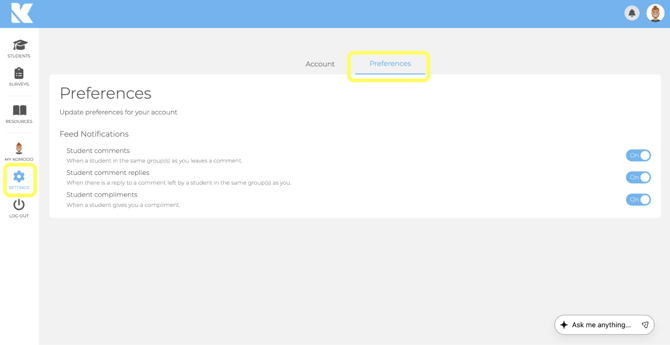
You'll be notified (for students in your groups) when:
- a student requests a check-in
- Komodo recommends a check-in
- a Student Safety answer needs follow-up
- a student comments in the Feed
- a student sends you a compliment
You'll also get a daily reminder while check-ins are waiting.
Getting alerts for students you don't teach? Ask your admin to fix your groups.
Step 4: Know what to do with a check-in
Check-ins show as tiles at the top of the Students page.
| Type | What it means |
|---|---|
| Requested | A student has asked to talk |
| Recommended | Their responses have been consistently low, or have dropped |
| Student Safety | Needs follow-up within 24 hours, using your school's safeguarding process |
☐ Know the follow-up steps
- Check the student's profile for context.
- Talk to them privately, outside learning time.
- Click Follow up, or Submit a quick note for ongoing support.
- If your school uses CPOMS, turn on Send to CPOMS when the note belongs there.
Follow-up notes are only seen by staff with pastoral oversight, never by the student. A red ring is a signal, not an alarm.
Step 5: Plan for surveys
☐ Check the Surveys calendar
- See what's coming up and preview the questions.
☐ Plan 5 to 10 minutes of class time on survey days
☐ Know how to chase completions
- Students → Surveys Due shows who has finished and lets you send reminders.
- Use the 📄 icon on a student's tile to let them complete it on your device.
Only admins can change surveys. Speak to your admin if something needs changing.
Step 6: Help your students sign in
☐ Print this year's QR codes
- Go to Students → QR Codes → Print, or choose Save as PDF.
- Students scan with Log in with QR code inside Komodo, not with the camera app.
☐ Know the other options
- SSO with their school account, or school email and password.
- Forgotten passwords are reset by your admin.
Step 7: Staff Wellbeing (if your school has it)
☐ Find My Komodo in the left menu
- It's private to you.
- Complete staff surveys and see your own wellbeing over time.
- Leave comments, send compliments, and request a check-in with a nominated colleague.
- Your survey responses are anonymous.
Can't see it? Ask your admin to add you to a Staff Wellbeing group, then sign out and back in.
Need help?
Your Komodo admin
- Groups, accounts, surveys and passwords.
Settings
- Change your language (17 available), theme, password and 2FA yourself.
Komodo Support
- support@komodowellbeing.com. Please don't include student names unless we ask.
