
The Komodo Custom API lets your school pull its Komodo data into other tools, such as Power BI, Looker Studio or your own data warehouse. Schools use it to build their own dashboards, combine wellbeing data with attendance or academic data, and create joined-up student profiles.
The API is read-only. You can pull data out of Komodo, but you can't add or change data through it. Full technical documentation is in the Komodo API docs.
What data is available
- Users, groups and years
- Check-ins
- Surveys: blueprints, the survey library, which surveys each student was sent, and survey responses
- Metrics, such as Sleep or Belonging, with scores from 0 to 10
- Your organisation's details
See the Data dictionary for every field, and the REST API reference for every endpoint.
The API returns identifiable student data, including survey responses. Only share credentials with people your school has approved to handle this data, and follow your school's data protection policy.
Before you start
- You need to be an admin in Komodo to create API credentials. See Admin roles and permissions.
- Custom integrations are switched on by default. If you can't see the option, contact support and we'll turn it on.
- Setting up the connection is usually done by your IT or data team. Share this article and the API docs with them.
Creating your API credentials
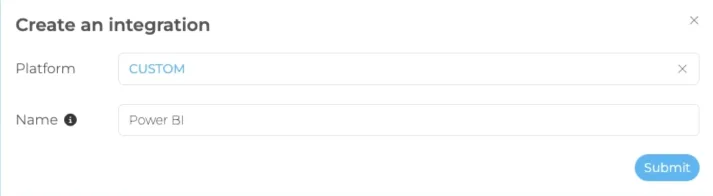
- Go to Settings → Integrations and click Create an Integration.
- Choose CUSTOM as the platform.
- Give it a name that says what it's for, such as "Power BI" or "Data warehouse". Each integration needs a different name.
- Click Submit.
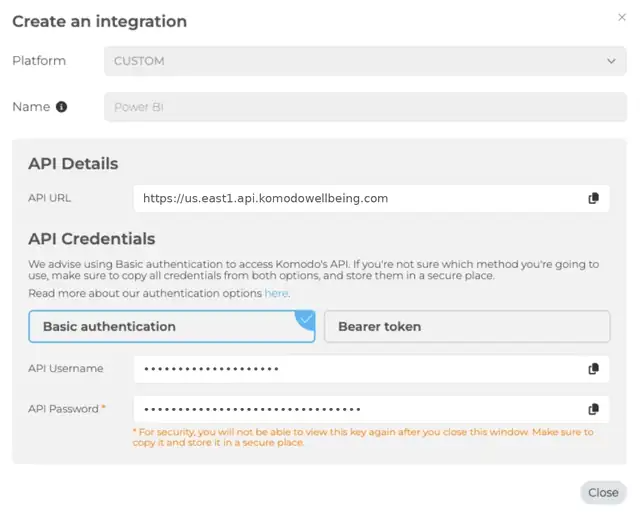
Komodo then shows the API URL, API Username and API Password. Copy all three and store them somewhere secure, such as a password manager. The password is only shown once. After you close the window, it can't be viewed again.
You can create as many integrations as you need. Use a separate one for each tool, so you can remove access for one without affecting the others.
Viewing or removing an integration
Your integrations are listed in Settings → Integrations, with the date each was created and last used. Click View to see the API URL and username. The password stays hidden.

- Lost the password: create a new integration, update your tool with the new credentials, then delete the old integration with the bin icon.
- A tool is no longer used, or someone with access leaves: delete the integration. Access stops straight away.
Connecting to the API
Use the API URL shown in Komodo. It includes your region, for example https://us.east1.api.komodowellbeing.com. There are two ways to authenticate:
- Basic authentication (recommended): use the API username and password with every request.
- Bearer token: call the Authenticate endpoint to get a short-lived token.
Full steps are in Getting started: Authentication. Lists of records are returned in pages, so your tool may need several requests to get everything.
Want to test before using live data? We have a staging environment for development. Contact support to request staging credentials.
Using Power BI
- Use Power BI Desktop. Power BI in the browser doesn't support this type of connection.
- Choose Web as the data source and enter the URL of the endpoint you want, for example your API URL followed by
/rest/v1/users. - Choose Basic authentication and enter your API username and password.
Power BI only loads the first page of results by default. The Power BI guide has a ready-made query that loads every page.
Troubleshooting
- Can't see Integrations in Settings: check you're an admin. If you are, contact support to switch on custom integrations.
- Authentication errors: check you're using the full API URL from Komodo, including the region, and that the username and password were copied exactly with no extra spaces. If the integration was deleted, the credentials no longer work.
- Only some records are coming through: results are paginated. Follow the pagination steps in the API docs or the Power BI guide.
- Power BI can't connect: make sure you're using Power BI Desktop, not the web version.
- Data is missing for some students: the API returns what's in Komodo. Check the students are in the right groups and years. See Managing users and groups.
- Want to send data into Komodo: the API is read-only. To sync students and staff, see Wonde integration.
Still stuck? Contact support with the integration name and the endpoint you're calling. Never send your API password.
