
Komodo uses Wonde to keep your students, staff and groups in step with your school's information system (SIS or MIS). Once connected, changes you make in your SIS flow into Komodo, so you do not need to manage users by hand.
What is Wonde?
Wonde is a third-party platform that securely connects school information systems to apps such as Komodo. It supports most major systems, including Arbor, SIMS, iSAMS, Engage, Kamar and Synergetic. If you are unsure whether yours is covered, ask us and we will check.
Komodo only reads data from Wonde. It does not write anything back to your SIS.
Setting up Wonde
- Request: tell your Komodo contact who manages your SIS, usually your IT or data manager. Wonde emails them an approval request for the Komodo app.
- Approve: your IT team approves Komodo in the Wonde portal, including the data permissions requested. If permissions are left pending, some information will not sync.
- Audit: Wonde checks the connection after approval.
- Connect and choose: Komodo connects the integration. Your admin then chooses what to sync (see below) and clicks Save and Sync.
The [Your SIS] Import page
Go to Settings → [Your SIS] Import. The page is named after your system, for example "SIMS Import".
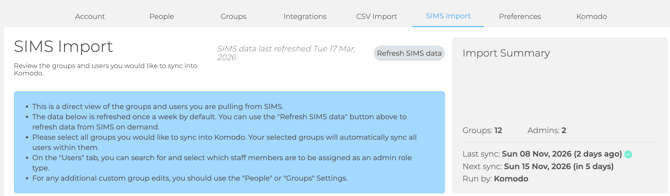
- Instructions panel: a reminder of how the page works.
- Last refreshed: when Komodo last pulled data from Wonde.
- Import Summary: groups and admins selected, errors, and the last and next sync.
- Groups tab: tick the groups to sync. Everyone in a selected group syncs. Most schools pick registration and year groups.
- Users tab: search for staff and tick Admin role required for anyone who needs admin access.
- Errors tab: records that cannot sync, such as a missing email. Fix these in your SIS.
How the sync works
- SIS to Wonde: allow 24 to 48 hours for changes to reach Wonde.
- Wonde to Komodo: changes arrive at the next sync. With auto-sync on, it runs once a week.
To sync now: click Refresh SIS data, check the Groups, Users and Errors tabs, then click Save and Sync. If you sync before Wonde has the change, run it again later. Video: Syncing groups and users into Komodo.
Your SIS is the source of truth. Synced users show a Wonde badge, and their details cannot be edited in Komodo. Make name, email, class and year changes in your SIS, then sync.
What a user needs to sync
- A school email address, unique to them.
- Membership of a group that is selected on the Groups tab.
- Students: a current enrolment, with no past leaving date.
- Staff: active employment, with no past end date, and at least one group.
Troubleshooting
Changes are not showing. Allow 24 to 48 hours after updating your SIS, then Refresh SIS data and Save and Sync.
Students are in the wrong year or class. Check the SIS has been rolled over, old groups with the same name are not selected, and the new class is ticked on the Groups tab.
A staff member has not synced or sees no students. Staff only import when assigned to at least one group. Heads of year are often linked to a year group but not classes, so add the classes they oversee. A past employment end date also stops them importing.
Leavers are still showing. Leavers are removed at the next sync once their leaving or end date has passed. Check the date is set in your SIS and that IT has approved all Wonde permissions, including pre-admission data.
A record looks right but still will not sync. Ask IT to check the user has not been excluded from the Komodo app in your Wonde portal.
My changes keep reverting. Changes made in Settings → People are overwritten at the next sync. Make them in your SIS. Staff Wellbeing roles are the exception and can be set in Komodo.
Can we also use CSV? We do not recommend it. Users added by CSV or by hand who are not in the sync may be removed. If you are moving from CSV to Wonde, you will not lose data. Existing users are matched to their SIS records.
We are changing SIS. Tell your Komodo contact before you switch. Data is linked to school email addresses, so history carries over if emails stay the same.
Still stuck?
- Check the Integrations page in Komodo for any Wonde permissions still outstanding.
- Review the Errors tab and fix records in your SIS.
- Email support@komodowellbeing.com with your SIS name and what you expected to see. Do not include student names or personal details.
