
A requested check-in is a student asking to talk with a trusted adult. It is one of the most direct ways a student can say "I'd like some support right now", so treat it like a student walking up to you to ask for help.
How students request a check-in
- At the end of every survey, students are asked Would you like to talk to a staff member? They choose Yes please or No thank you.
- Students can also request a check-in at any time while they are logged in to Komodo.
- They pick from a list of staff your school has set up, so they only see adults they know. They can add a short comment, or simply ask to talk in person.
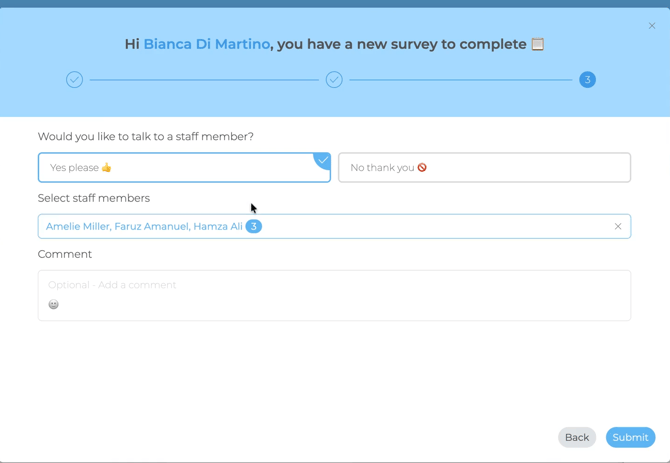
Whether a student requests a check-in or not, you still see all of their survey responses.
When you are notified
The staff member the student chose is notified straight away. Requests also show in the requested check-ins tile at the top of the Students page, which counts the students in your groups with a request still waiting.
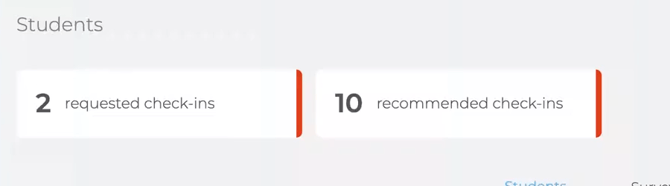
Suggested response time: within 48 hours.
Reading a requested check-in
Click the requested check-ins tile to open the list. Each request shows:
- who the student asked to talk to, and the date
- the student's comment, if they left one
- Check-in is not directly assigned to you when the student chose a colleague. You can still see it because the student is in your group.
- any previous outstanding check-ins for that student
- how many days are left before it expires
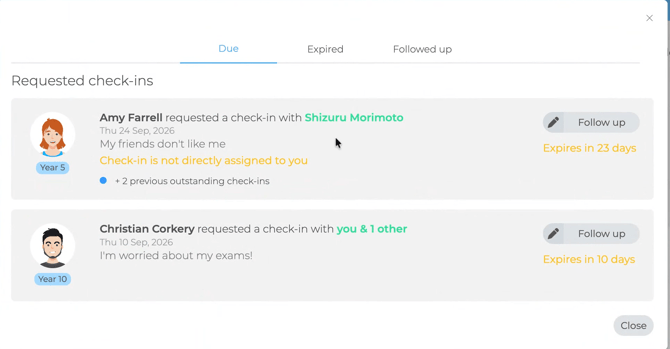
Use the Due, Expired and Followed up tabs to keep track. Requests that are not followed up in time move to Expired.
Following up
- Have the conversation first, somewhere private and comfortable. The Conversation Guide can help.
- Open the requested check-ins tile, find the student and click Follow up.
- Complete the three fields: Reason for check-in, What was discussed? and What next?
- If your school uses CPOMS, switch on Send to CPOMS.
- Click Submit.
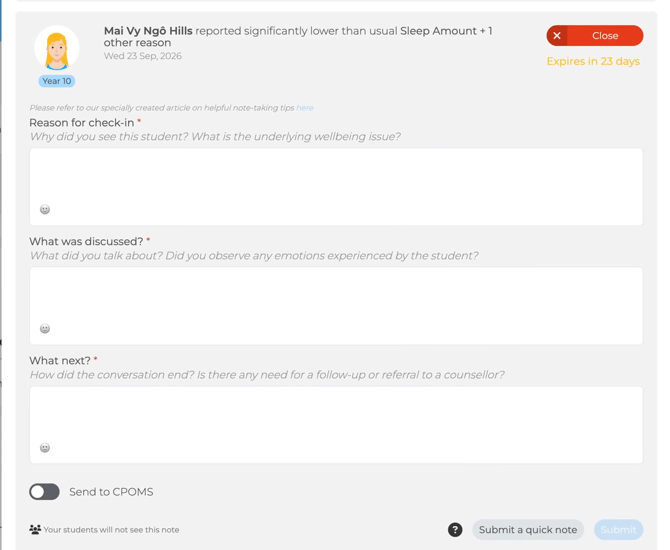
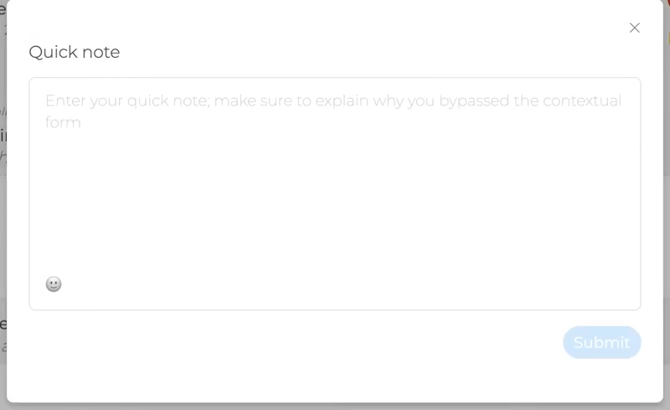
For a less serious request, click Submit a quick note instead and explain briefly why you skipped the full form.
Notes are saved on the student's profile under the Check-ins tab. Students cannot see them. Notes are not anonymous, for safeguarding reasons. Tips: Writing effective wellbeing notes.
Good to know
- Students can only choose staff who are assigned to their group. If the right adults aren't on the list, ask your admin to check group assignments.
- Admins can opt out of receiving requested check-ins. Staff can't, so an admin changes their groups instead.
- Komodo is not a safeguarding tool. Always follow your school's safeguarding policy for any concern.
See also: Recommended check-ins and Student Safety check-ins. Guide: Effective Guidelines for Check-ins.
Watch the walkthrough
