
Student Safety is a question category for Komodo's three most sensitive questions. It uses a clear YES/NO format so students can tell you when they need help, and every concerning answer creates a check-in for the staff who support that student.
What is Student Safety?
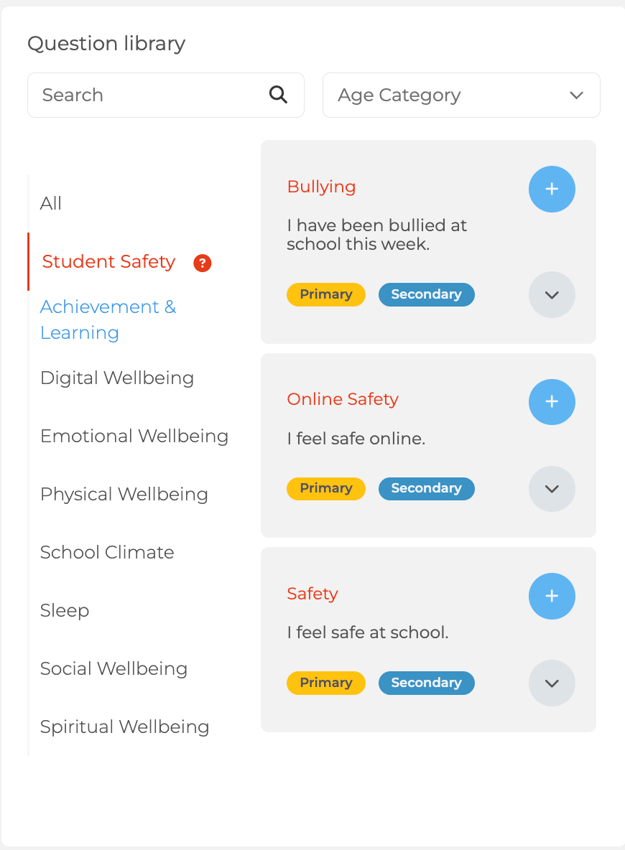
The three Student Safety questions are:
- I feel safe at school
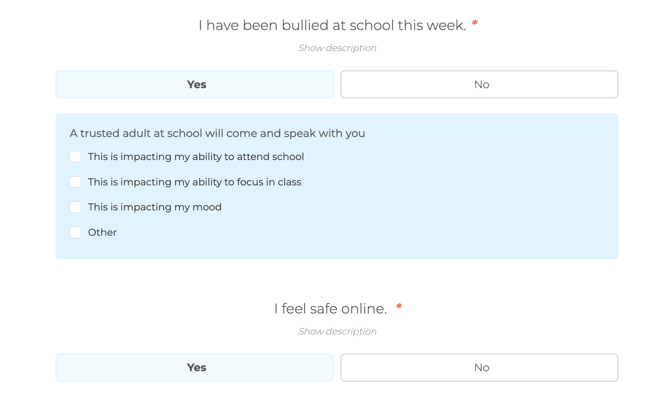
- I have been bullied at school this week
- I feel safe online
They now use YES/NO, so high-risk answers are easy to spot and act on. The questions work for Primary and Secondary, with age-appropriate wording for each, and the same follow-up process for all ages.
Adding the questions to a survey
- Open your survey and go to the Question Library.
- Select the Student Safety theme.
- Click + on the questions you want to include.
Komodo automatically places a Student Safety question at the end of the survey, so it is the last thing a student answers.
Updated questions: The previous versions of these questions have been retired. If you do not swap them for the Student Safety versions, they are removed from your active surveys automatically. No historical data is lost. It stays in Analytics (Check-in).
What happens when a student gives a concerning answer
For the student: they see a message telling them a trusted adult will follow up. They then add context by ticking options, and can write more in their own words if they want to.
For staff:
- A Student Safety check-in notification goes straight away to every staff member assigned to that student.
- Follow up within 24 hours.
- If no follow-up is recorded within 24 hours, assigned staff receive a reminder email.
Komodo flags the response so your staff can act. Decisions about the student, and any safeguarding steps, follow your school's own safeguarding policy. To guide conversations with students you can also use: Komodo Student Safety Conversations Guide.
Where to find Student Safety check-ins
- Students page: in their own tile, next to Requested and Recommended check-ins.
- Student profile: on the student's timeline (shown as a red line) and in their response table.
- Analytics: highlighted in red in the check-in timeline and pie chart, with a breakdown table in cohort analytics.
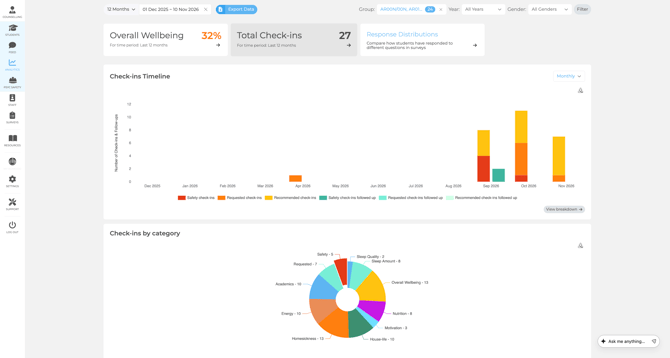
Student Safety data is kept separate from wellbeing trends and theme scores. It works as an incident record, so it does not change your overall wellbeing score.
Managing check-in volume
Because every concerning answer triggers a check-in, these questions usually increase the number of check-ins staff receive. Plan who will respond before you add them. If the volume becomes hard to manage, you can use the lower-sensitivity alternatives in the Question Library instead.
For a full walkthrough, see the Student Safety Feature Guide.
