
If your school syncs with Wonde, your school information system (SIS or MIS) is the source of truth. Students, staff, classes and years come from your SIS, so you manage them there, not in Komodo. This guide covers the day-to-day jobs. To set up Wonde, see Wonde integration: syncing your SIS with Komodo.
Not using Wonde? See Managing users and groups: manual and CSV.
How changes reach Komodo
- SIS to Wonde: allow 24 to 48 hours for a change in your SIS to reach Wonde.
- Wonde to Komodo: the change arrives at the next sync. With auto-sync on, this runs once a week.
Synced users show a Wonde badge in Settings → People. Their name, email, class and year can't be edited in Komodo, and changes made there are replaced at the next sync. See below:
Syncing now
- Go to Settings → [Your SIS] Import. The page is named after your system, for example "SIMS Import".
- Click Refresh SIS data to pull the latest information from Wonde.
- Check the Groups, Users and Errors tabs.
- Click Save and Sync. When it finishes, the last sync time updates in the Import Summary.
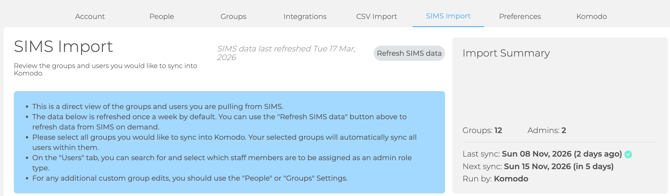
If you sync before Wonde has picked up a change, run it again later.
Adding a student or staff member
- Add them in your SIS with their own school email address.
- Put them in a class, registration or year group that is ticked on the Groups tab. Staff need at least one group, or they won't import.
- Allow 24 to 48 hours, then sync now (above), or wait for the weekly sync.
Editing someone's details
Change names, emails, classes, and years in your SIS, then sync in Komodo. This includes preferred names, which come from your SIS.
Removing leavers
You don't need to remove leavers by hand. At the next sync, Komodo removes:
- students whose leaving date has passed
- staff whose employment end date has passed
- people who are no longer in your SIS
If leavers are still showing, check that their leaving or end date is set in your SIS, then ask IT to approve every Wonde permission, including pre-admission data.
Managing groups
- Choosing what syncs: on the Groups tab, tick the groups you want. Everyone in a ticked group syncs. Most schools pick registration and year groups.
- New classes: tick them on the Groups tab, then click Save and Sync. Classes that aren't ticked won't come through.
- New school year: check your SIS has been rolled over, and that last year's groups with the same names aren't ticked.
Giving staff access and admin rights
- Seeing more students: staff see students in the groups they belong to. Assign them to classes in your SIS, or on the Users tab of the Import page, then Save and Sync. Heads of year are often only linked to a year group, so add the classes they oversee.
- Making someone an admin: on the Users tab, search for them and tick Admin role required, then Save and Sync. See Admin roles and permissions.
- Staff Wellbeing roles are the exception: you can still set them in Komodo.
What someone needs to sync
- A school email address that is unique to them
- Membership of a group ticked on the Groups tab
- Students: a current enrolment, with no past leaving date
- Staff: active employment, with no past end date, and at least one group
Troubleshooting
- My changes keep reverting: they were made in Settings → People and the sync replaced them. Make the change in your SIS.
- New students aren't showing: allow 24 to 48 hours, check their class is ticked, then sync again. Ask IT to check that every Wonde permission is approved.
- A student is in the wrong class or year: fix it in your SIS, check old groups aren't ticked, then sync.
- A staff member sees no students: make sure they share a class or registration group with those students, not just a year group.
- Someone still won't sync: check the Errors tab and fix the record in your SIS. Then ask IT to check that the person isn't excluded from the Komodo app in your Wonde portal.
- Note: Can we also use a CSV?. If your school is Wonde-synced for student wellbeing groups, you shouldn't need to use CSV. For Staff Wellbeing users, this will need to be done via CSV as the sync does not update these.
Still stuck? Contact support with your SIS name and what you expected to see. Don't include student names.
Doing this at the start of the year? Follow Admin checklist, Steps 2 and 3.
Video: Syncing groups and users into Komodo.
